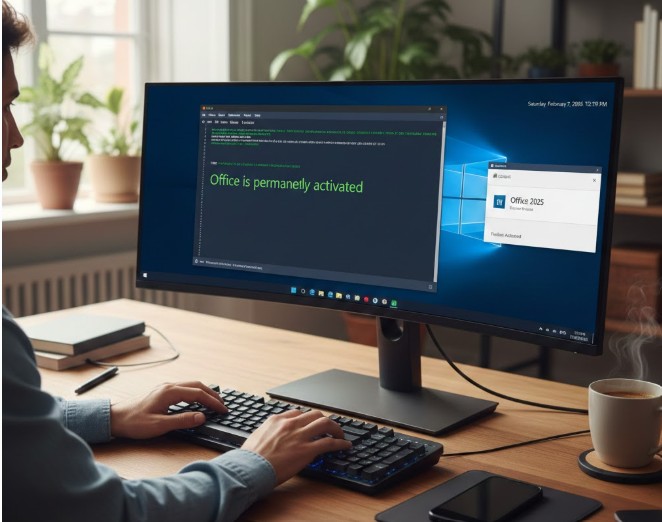
Are you seeing the message “There was an error when trying to rearm Office. You can try passing the SKU ID as a parameter” while trying to activate Microsoft Office? This common error, 0xc004d307, usually occurs when the rearm limit has been reached or there is a licensing conflict. In this guide, we will show you how to fix this using Windows PowerShell in just a few minutes.
Step-by-Step Fix:
- Check Internet: Ensure your PC is connected to a stable internet connection [00:27].
- Open PowerShell: Search for Windows PowerShell, right-click it, and select Run as Administrator [00:40].
- Run Command: Copy and paste the activation command (provided below) into the PowerShell window and press Enter [00:45].
- Activation Menu: A new window will appear. Type Option 2 for MS Office Activation [01:09].
- Initialize: On the next screen, select Option 1 to begin the initialization and permanent activation process [01:19].
- Verify: Once the message “Office is permanently activated” appears [01:37], open any Office app like Word or PowerPoint, go to File > Account, and you will see “Product Activated” [02:16].
(Note: You can watch the full video tutorial below for a visual walkthrough.)
Video Link: https://www.youtube.com/watch?v=IkwVGZZMnI0
Check out more Software Tools on Saifosys.
Find more Windows Tutorials here.